| 15.6. Tools | ||
|---|---|---|
| Chapter 15. Menu | ||
Configuration Dialog
Insert the name of the new tool here. This name will be shown in the menu afterwards. To sort the different tools in sub-menus use slashes, e.g. SVN / Add ... will create the menu Tools → SVN → Add ....
Adds a new command to the tool.
Insert the command to be executed here. There are several internal commands and placeholders for internal values which can be used. For a list of all internal commands and placeholders click the Show Internal Commands and Placeholders link. Use the context menu (right mouse click) to select the commands and values easily. Instead of using SVN or ClearCase commands directly you can use the corresponding placeholders which will be replaced with the configured command and its arguments afterwards.
If a tool consists of more than one command they can be connected via the AND or OR selection. By selecting AND the following command will be executed only, if the current command was executed successfully. By using OR the following command will be executed even if the current command failed. Use X to delete a single command.
Tools can be configured to be visible in different Roles, Review Cycles and Review Phases only. This option is useful for instance to configure a tool to check in the project file with a different predefined check in comment in different review cycles. To change the visibility select the corresponding radio buttons.
Default tools can be predefined via configuration files, to be available for all users. If the settings of a default tool have been changed they can be reset via this button.
![]() |
Defining Default Tools for configuration of default tools. |
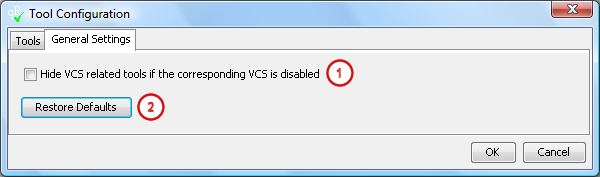
Select if VCS specific tool menus have to be hidden if the corresponding VCS is disabled via the Preferences dialog.
Resets all default settings including the default tools.
Tool Dialog
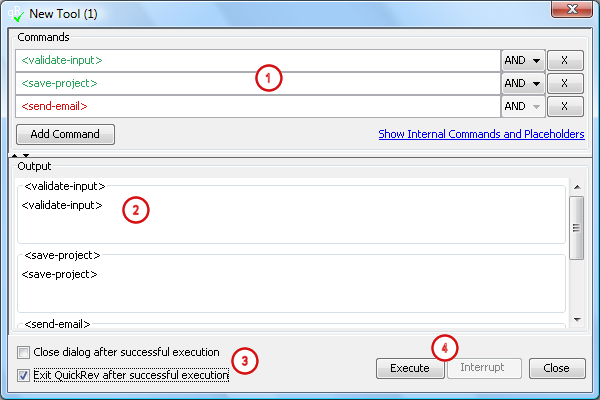
This part of the tool dialog shows the same settings like defined in the Tool Configuration dialog. The predefined values can be changed here before executing the tool. Use the context menu to easily select internal commands and values. During execution of a tool the single commands will colored green or red according to the state of the execution (green - successful; red - error), more detailed information are shown in the Output section.
![]() |
Configuration Dialog for more information. |
The Output section shows the output information of every executed command.
Select whether the dialog shall be closed after the successful execution of all commands, furthermore you can define whether QuickRev shall be exited after the successful execution. The selections can be predefined via the Configuration Dialog. There you can specify too, whether the tool has to be executed automatically after selection the tool menu.
Click Execute to execute the tool. Interrupt will interrupt the execution.
Defining Default Tools
![]() | For more information about tool configuration via config files see Element: QuickRev / Preferences / Tools |
Example Tools
| Initialize a new project and add the file to SVN control. | |
<set-conclusion Effort=session-time; Date=today; Finished=true>
|
Fill in the conclusion fields of the Initiator by adding the current date in the Date field, select Finished and inert the session time in the Effort field. Additionally ask for the Effort, which can be helpful if the review was started at some point and in between something other has been done without stopping the session time, so it can be corrected here. |
<validate-input>
|
Check whether all needed information has been inserted in the corresponding fields. |
<save-project>
|
Save the project, if it has not been saved before, QuickRev will ask for the name of the project file. |
%svn% add %filePath%
|
Add the project file to subversion control. |
%svn% propset svn:mime-type text/xml %filePath%
|
Set the subversion mime-type, so that the project file is indicated as xml-file in the browser and the stylesheet will be applied correctly. |
%svn% commit -m "init review" %filePath%
|
Commit the project file with the message "init review". |
<show-email-dialog>
|
Open the email-dialog to inform the reviewers about the new review. It would be possible to send the email directly, but by opening the email-dialog attachments can be assigned as well and the text of the email can be changed. |
| Finish a review. | |
<set-conclusion Effort=session-time; Effort:ask; Date=today; Finished=true>
|
Fill in the conclusion fields of the Reviewer by adding the current date in the Date field, select Finished and inert the session time in the Effort field. Additionally ask for the Effort, which can be helpful if the review was started at some point and in between something other has been done without stopping the session time, so it can be corrected here. |
<validate-input>
|
Check whether all needed information has been inserted in the corresponding fields. |
<save-project>
|
Save the project, if it has not been saved before, QuickRev will ask for the name of the project file. |
%svn% commit -m "review finished (%comments%)" %filePath%
|
Commit the project file with given message (which includes the number of comments). |
<send-email sendCopyToSender=true>
|
Send a email to the initiator and send a copy of the message to the reviewer. |
| Verify all changes by just one reviewer and finish the review. | |
<set-conclusion Effort=session-time; Effort:ask; Date=today; Finished=true>
|
see above |
<set-conclusion [other-reviewers] Effort=00:00; Date=today; Finished=true>
|
Set the conclusion fields of all reviewers except the current user, by assigning 00:00 to the Effort field, add the current date to the Date field and select Finished.
|
<validate-input>
|
see above |
<save-project>
|
see above |
%svn% commit -m "verification finished (%comments%)" %filePath%
|
see above |
<send-email sendCopyToSender=true>
|
see above |
| Update and reload a project file from SVN, which can be helpful if another reviewer has changed the file in between. | |
%svn% revert %filePath%
|
Reverts the loaded project file. |
%svn% update %filePath%
|
Updates the loaded project file. |
<reload-project>
|
Reloads the project into QuickRev. |
| Perform a quick review on the screen and document the complete review by the Initiator. | |
<all-mode enable=true; add-reviewer:ask>
|
Select the ALL-mode, ask for the name of the new reviewer and assign her/him to the review. |
<set-conclusion Effort=session-time; Date=today; Finished=true>
|
Fill in the conclusion fields of the Initiator by adding the current date in the Date field, select Finished and inert the session time in the Effort field. |
<set-conclusion [all-reviewers] Effort=session-time; Effort:ask; Date=today; Finished=true>
|
Fill in the conclusion fields of the new Reviewer by adding the current date in the Date field, select Finished and inert the session time in the Effort field. Additionally ask for the Effort to change the previously inserted value. |
<validate-input>
|
Check whether all needed information has been inserted in the corresponding fields. |
<save-project>
|
Save the project, if it has not been saved before, QuickRev will ask for the name of the project file. |
%svn% add %filePath%
|
Add the project file to subversion control. |
%svn% propset svn:mime-type text/xml %filePath%
|
Set the subversion mime-type, so that the project file is indicated as xml-file in the browser and the stylesheet will be applied correctly. |
%svn% commit -m "performed quick review on the screen" %filePath%
|
Commit the project file with the shown message. |
<all-mode enable=false>
|
Finally de-select the ALL-mode again. |
| Copyright © 2008 - 2026 Tom Seidel | Last Update: 2026-2-23 |